Your TrustRating reputation shouldn't stop at your website. Badges and marketing assets let you carry your score into every channel your customers see — email signatures, order confirmations, packaging inserts, social posts, and ads. This guide covers what's in the asset pack, how to get each piece from the business panel, where the assets work best, and the representation rules that keep the badge meaning something.
What the asset pack includes
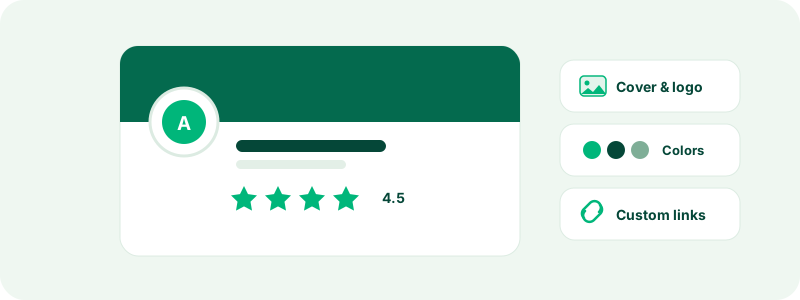
Everything lives on the Marketing assets page of your business panel. The pack is built around live badges — compact images served directly by TrustRating that always render your current TrustScore, so there is nothing to update when your rating changes:
- Score badges — your TrustScore with the star mark, available in light and dark themes and in small, medium, and large sizes. These are the workhorses: they say "here's our rating, verify it yourself."
- "Review us" badges — a call-to-action variant in light and dark themes, designed to invite reviews rather than display the score. Use these where you're asking, not showing: order-confirmation emails, receipts, your website footer.
- Ready-made embed snippets — every badge tile has a Copy embed button that puts a complete HTML snippet on your clipboard: the badge image already wrapped in a link to your public TrustRating profile. Paste it and you're done.
- SVG downloads — each badge can also be downloaded as an SVG file for use in designed materials: packaging artwork, print layouts, slide decks. The downloaded file is a snapshot of your score at the moment you export it, so re-download when your score changes meaningfully.
- Your public profile URL — a copyable link to your company page, for plain-text contexts like email footers and social bios.
Every plan includes the standard light score badge. The full pack — the dark theme, the extra sizes, and the "Review us" call-to-action badge — is part of the paid marketing asset pack; see choosing a plan for which tiers include it.
Badges versus live widgets
Badges and widgets overlap enough that it's worth being clear about the difference:
- A badge is a single image plus a link. It needs no JavaScript, which is exactly why it works in places widgets can't — email clients, receipts, and any platform that strips scripts. Embedded badges are served live by TrustRating, so they show your current score wherever the image loads.
- A widget is a script-powered embed that renders richer content — review text, carousels, AI consensus breakdowns — and adapts interactively to its container. Widgets are the better choice on your own website, where the extra depth earns its keep.
A good rule of thumb: widgets on web pages you control, embedded badges everywhere else, downloaded SVGs only where live loading isn't possible (print, packaging).
Where to use your assets
- Email signatures. Paste the badge embed snippet into your signature template. Every message your team sends becomes a small, verifiable trust signal.
- Transactional emails. A "Review us" badge in the order-confirmation or delivery email is one of the most natural collection points — the customer is already thinking about the purchase. Pair it with your reusable review link from the invitations page for tracked attribution; see sending review invitations.
- Packaging inserts and receipts. Use the downloaded SVG in your printed artwork, ideally alongside the QR code for your review link so the path from package to review form is one scan long.
- Social posts and profiles. Milestone posts — crossing a score threshold, reaching a review count — perform well with a score badge as the visual. Keep the caption factual and link to your profile.
- Ads and landing pages. An independent score is stronger ad copy than any self-authored claim. On landing pages, prefer the live widget; in static ad creative, use the badge and keep it current.
Tip: Wherever a badge appears, make it clickable through to your TrustRating profile whenever the medium allows. A score a reader can verify in one click is worth far more than one they have to take on faith — and the copy-embed snippet wires this up for you automatically.
The rules: accurate representation
The badge works for everyone only if it always tells the truth. A few rules are enforced, and all of them serve the same principle — what you display must match what a visitor finds on your profile:
- Show your current score. Embedded badges handle this automatically. For downloaded SVGs and printed materials, you are responsible for refreshing artwork when your score changes — a package showing 4.8 while your profile shows 3.9 is a misrepresentation.
- No doctored assets. Don't edit the badge artwork, recolor it, change the score it displays, or build lookalike badges of your own. Use the files exactly as exported.
- Give it room. Keep clear space around the badge — roughly the height of the star glyph — and don't crowd it into other logos or overlay text on it.
- Link it back. Wherever technically possible, the badge should link to your TrustRating profile so readers can verify the score and read the reviews behind it.
- Don't imply endorsement. The badge communicates your customer rating; it doesn't mean TrustRating endorses your business, and your materials shouldn't suggest otherwise.
The complete brand guidelines live in the legal hub. Misusing badge assets — particularly displaying a fabricated or stale score — can lead to enforcement action against your profile.
Getting assets from the panel, step by step
- Open your company in the business panel and go to Marketing assets.
- Each badge is shown as a tile with a live preview — what you see is exactly what will render, at your current score.
- Click Copy embed to copy the ready-made HTML snippet, or SVG to download the artwork file.
- For plain-link placements, copy your public profile URL from the panel on the same page.
Note the downgrade behavior: if your plan stops including the full asset pack, embed URLs you've already placed for pack-only badges keep working, but they serve the standard basic badge instead of going blank. Your materials never break — they just fall back to the simpler style until you're back on a plan with the pack.
Common questions
"Does the embedded badge update when my score changes?" Yes — it's served live by TrustRating, so it always renders your current TrustScore. Only downloaded SVG files are frozen at export time.
"Can I put the badge on marketplaces or third-party profiles?" Yes, anywhere you can place an image and preferably a link. The same accuracy rules apply.
"My badge looks wrong on a dark background." Use the dark-theme variants from the asset pack rather than modifying the light badge yourself — modification breaks the usage rules.
"Where does the score come from?" From your public reviews, computed exactly as described in understanding the TrustScore. Badges display it; nothing about a badge changes it.
The strongest setup combines all three layers: a customized profile as the destination, live widgets on your website, and badges everywhere else pointing back to it.