The single most effective thing a business can do on TrustRating is ask. Most satisfied customers never think to leave a review on their own — the ones who seek out a review form unprompted are disproportionately the ones with a complaint. Invitations fix that imbalance: you ask every customer, right after the experience, and the reviews that come back reflect your actual customer base instead of its unhappiest slice.
This guide covers everything about invitations: why invited reviews are worth more than organic ones, the different ways to send them, how to time them, what your customer sees, how to read the results, and what to do when an invitation doesn't land.
Why invited reviews outperform organic ones
Invited reviews carry three structural advantages:
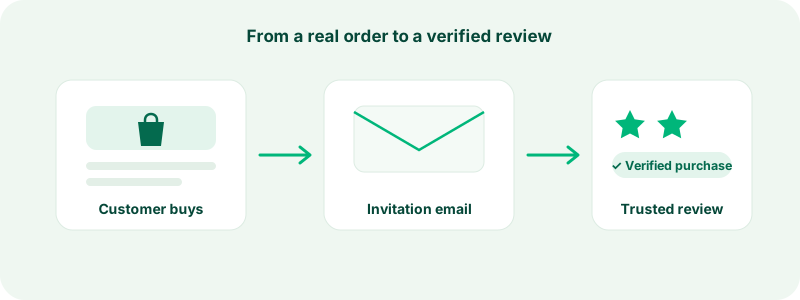
- The verified purchase badge. Every review written through a personal invitation link is marked as a verified purchase — the invitation itself is proof that a real transaction connects the reviewer to your business, and attaching an order reference ties it to a specific purchase. Readers weigh verified reviews more heavily, and our integrity systems do too: verified reviews are far less likely to be held for moderation, and a brand-new reviewer's first review skips the extra scrutiny it would otherwise receive.
- Steadier volume. Organic reviews arrive in unpredictable bursts. Invitations sent as part of your routine — after every delivery, every completed job — produce a steady stream. Because the TrustScore weights recent reviews more heavily and stabilizes with volume, a steady stream keeps your score both fresh and resilient.
- A representative sample. When only self-selected customers review you, your profile skews negative. When you invite everyone, your rating converges on what your customers actually think — which, for most businesses, is considerably better.
The two kinds of invitation links
TrustRating gives you two complementary tools, both on the Invitations page of your business panel.
Your review link is a single reusable URL, with a ready-made QR code, that you can print on receipts, add to packaging inserts, or put on a counter card. It never expires, doesn't count against any quota, and can be handed to any number of customers. Reviews submitted through it carry an "Invited by company" provenance marker, so readers can see the review came through your own channel. If the link ever leaks somewhere you don't want it — a coupon site, for example — you can rotate it with one click, which instantly invalidates every printed copy and issues a fresh URL.
Personal tracked invitations are one-per-customer links. Each one is unique, single-use, and tracked through the full funnel: you can see when it was sent, when it was clicked, and whether it ended in a review. Personal invitations are what produce the verified purchase badge, so they are the tool to reach for after every completed order.
Sending personal invitations step by step
- Open your company in the business panel and go to Invitations. The Send invitations tab is the default view.
- Enter your customers' email addresses in the recipients box — one per line, or separated by commas. You can also import a CSV: the panel extracts every email address it finds in the file, so an export from your order system works as-is, headers and extra columns included.
- Optionally add an order reference — an order or transaction ID. Reviews arriving through a link with an order reference are bound to that transaction, strengthening the verified purchase marking.
- Choose a delivery method:
- Generate links (available on every plan). TrustRating mints a personal tracked link for each recipient and hands the batch back to you. Copy them individually, copy all, or download them as a CSV — then send each customer their link from your own email, SMS, or receipt system. Nothing is emailed by the platform in this mode. - Send emails via TrustRating (included in higher plans). The platform emails each customer a review invitation directly, up to 50 recipients per batch. Every email includes a one-click unsubscribe link, and addresses that have opted out are skipped automatically.
- Click the send button. Duplicates, invalid addresses, and unsubscribed recipients are filtered out and reported back to you — the rest of the batch goes through.
Both delivery methods draw on the same monthly invitation quota, which varies by plan. A usage meter on the page shows where you stand, and the account owner is alerted by email as the quota approaches its limit. If you send at higher volume from your own systems, the invitation API can mint tracked links programmatically — see the Automation tab.
When to send: timing strategy
The best moment to invite a review is shortly after the experience completes — after the package arrives, the service is delivered, or the support ticket closes. The details are fresh, which produces specific, useful reviews rather than vague ones.
Tip: For physical goods, invite a few days after expected delivery, not at the moment of purchase. A customer who hasn't received the product yet can only review your checkout page.
Avoid sending long after the fact: recall fades, and personal invitation links expire 30 days after they are created, so a link sent months after delivery may go stale before the customer opens it. And resist the urge to re-invite the same customer repeatedly for the same purchase — one ask is an invitation; three is a nuisance.
What your customer experiences
The customer receives a short invitation — from you (link mode) or from TrustRating on your behalf (email mode) — with a personal link. Clicking it opens the review form already connected to your company: no searching, no wrong-company mistakes. They choose a star rating, write their review, and submit. If they don't yet have a TrustRating account, they can create one as part of the flow.
Because the link is single-use, it can't be forwarded around to generate multiple reviews, and once the review is submitted the link is done. The published review shows the verified purchase badge, telling every future reader this feedback came from a confirmed customer.
Tracking your results
The History tab lists every personal invitation with its current status: sent, clicked, reviewed, or bounced. A funnel summary at the top of the Send tab shows the same at a glance. Watch two numbers over time:
- Click rate — how many recipients open their link. A low click rate usually means weak timing or an invitation message that doesn't explain what you're asking.
- Review rate — how many clicks turn into submitted reviews.
If you use the reusable review link, an A/B test feature (included in higher plans) can split visitors between two versions of your invite landing copy and report which converts more clicks into reviews. You can also cancel any invitation that hasn't been used yet from the History tab, and your analytics dashboard tracks invitation activity alongside your rating trend.
The rules: invite everyone
One rule governs all review collection on TrustRating: invite all your customers, not just the ones you expect to be positive. Filtering who gets asked — sometimes called cherry-picking or review gating — is a violation of our guidelines, because it manufactures a rating your real customer base wouldn't produce. Offering rewards for positive reviews, writing reviews yourself, or asking staff and friends to review you are all violations too, and they are exactly the patterns our fraud screening is tuned to detect.
The good news: honest bulk invitations work better anyway. Businesses that invite every customer almost always see their score rise, because the silent satisfied majority finally shows up.
Troubleshooting undelivered invitations
"Some addresses were skipped." The result message tells you why: entries that aren't valid email addresses are rejected, duplicates are collapsed, and recipients who previously unsubscribed from your invitations are excluded — permanently, unless they opt back in.
"An email shows as bounced." In email delivery mode, the History tab records sends the mail server rejected, along with the reason. The usual causes are a typo in the address or a full mailbox. Fix the address and send a fresh invitation.
"My customer says the link doesn't work." Personal links expire after 30 days and die once used. Generate a new invitation for that customer — it costs one quota unit and takes seconds.
"The quota ran out mid-batch." Recipients beyond your remaining quota are skipped and counted in the result message. Your quota resets with your billing period, or you can upgrade your plan for more headroom.
"I can't send at all." Companies under an active moderation restriction cannot issue invitations. If you believe this is an error, contact support.
Once the reviews start arriving, the next habit to build is answering them — see responding to reviews.