Every company on TrustRating has a public profile page, whether or not anyone at the company has ever looked at it. Customers leave reviews, a TrustScore takes shape, and potential buyers read all of it — with or without your side of the story. Claiming your profile is how you join the conversation: it proves to us, and to your customers, that you genuinely represent the business, and it hands you the controls.
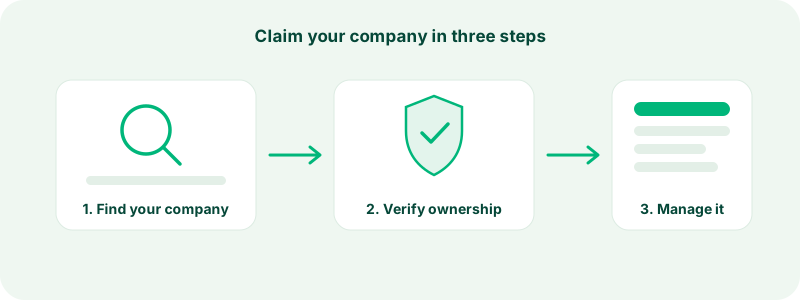
Claiming is free and takes a few minutes. This guide covers the whole journey: finding your company (or adding it if it is missing), submitting the claim, verifying that you actually work there, creating your business account along the way, and what you can do the moment you are approved.
Why claim your profile?
Three reasons stand out, and none of them cost anything:
- It is free, forever. The essentials never require a subscription: claiming the profile, replying to reviews, completing your company details, and monitoring your TrustScore are all included at no charge.
- You can reply to reviews publicly. Readers judge a company as much by how it answers criticism as by the star rating itself. Until you claim, every review sits unanswered. Our guide on replying to reviews covers how to do it well.
- You control the facts. Your description, logo, website, headquarters, founding year, and category all become editable. An unclaimed profile shows whatever data the listing was created with; a claimed one shows what you put there.
Claiming also unlocks the path to everything else on the business side: verifying your domain for the verified badge, branding your public page, inviting your customers to review, and embedding review widgets on your own site.
Before you start
Have two things ready:
- An email address on your company's own domain — something like you@yourcompany.com. This is the fastest route through verification. If the listing already has a website on file, TrustRating requires your work email to be on that same domain; a personal Gmail or Outlook address will be rejected for those claims.
- Your role at the company. The claim form asks what you do there, and our verification team reads it. "Owner", "Marketing manager", or "Customer support lead" all work — just be accurate.
If you genuinely cannot receive email at the company domain, you can still claim — see the common problems section below.
Finding your company — or adding it
Start from the business area and open the signup flow, or click the Claim this business button on any unclaimed company page.
The signup form gives you two paths:
- Existing listing. Type your company name into the search box and pick it from the results. Most established businesses are already listed, often because customers reviewed them before anyone at the company arrived.
- Add a new business. If the search comes up empty, switch to this mode and enter your company name, your website (optional but strongly recommended — it enables the fast email verification path), and your approximate company size. The listing is created as part of your claim.
Tip: search a few variations before adding a new listing — trading names, abbreviations, and the domain name itself. Duplicate profiles split your reviews and your TrustScore across two pages, and merging them later requires support.
Step by step: submitting your claim
- Select your company (or fill in the new-business fields).
- Enter your work email on the company's domain. This is where the confirmation link goes.
- Enter your role at the company, and optionally a short message for the verification team — useful context like "we just rebranded from OldName" genuinely speeds things up.
- Agree to the Terms of Service and Privacy Policy, and complete the human check.
- Submit. We immediately email a confirmation link to the work address you gave.
- Click the link in that email. This proves you control a mailbox on the company's domain and is a hard requirement — our team will not approve a claim whose work email is unconfirmed, except in rare cases verified through other channels.
- Our verification team reviews the claim. You are notified by email and in your notification bell the moment it is decided.
The confirmation link stays valid for seven days, and requesting a fresh one invalidates any older links. If you change your mind while the claim is still pending, you can cancel it yourself from the business panel.
Creating your account during the claim
If you are not signed in, the claim form doubles as account creation, so you do everything in one pass. You will choose your name, an account email, and a password — at least 8 characters, with a live strength meter on the field. A long passphrase of three or four random words beats a short cryptic string every time.
A few variations worth knowing:
- Personal plus business. By default you get a personal reviewer account and a linked business identity scoped to your company. One login, both sides of the platform — see creating your account for how the two fit together.
- Business-only account. If you are signing up with a shared mailbox like office@yourcompany.com and there is no individual person behind it, tick the business-only option. The work email becomes your only login.
- The activation email safety net. If your account was created for you — for example a colleague invited you to the team — you will not set a password on a form. Instead you receive an activation email: click the link, choose your password on the page that opens, and you are in. Activation links expire after a few days; if yours has lapsed, use Forgot password on the login page to get a fresh one.
What you get immediately after approval
The moment your claim is approved, several things happen at once:
- You become the owner of the profile, and the public page gains a verified marker showing the business is actively managed.
- The business panel opens up: reply to reviews, edit your company details, upload your logo, and watch your TrustScore — which, to be clear, does not change because you claimed. Reviews and scores are never edited as part of a claim.
- We automatically start your domain verification: you receive an email with a DNS record to add, the strongest proof of ownership on the platform. Details in verifying your domain.
- You can invite teammates so colleagues manage reviews with their own logins instead of sharing yours.
Common claim problems
"This company has already been claimed." Someone else already owns the profile. Often that is a colleague — ask around before assuming the worst, because the owner can simply invite you to the team. If the profile is held by someone who should not have it (a former employee, a disconnected agency, or an impostor), open a dispute through contact support. Our team investigates ownership disputes, can require fresh proof from the current owner, and will revoke and transfer ownership when the evidence supports it.
No email on the company domain. If the listing has no website on file, we accept any work email, but the claim is flagged for manual review and takes longer — adding your website to the claim helps. If the listing does have a domain and you simply cannot receive mail there (for example, your email runs on a different domain than your website), contact support: claims can be verified through other evidence, and you can complete DNS-based domain verification afterwards as the strong proof.
Multiple locations or brands. One business account manages one company at a time — that is a deliberate rule, so audit trails stay clean. To manage a second company, create an additional linked business identity from your personal account rather than a second unrelated login. Note that plans limit how many companies one linked account group can claim, so larger multi-brand operations should look at choosing a plan that fits.
The confirmation email never arrived. Check spam and any corporate mail filtering first. You can resend the link from the business panel, and support can also trigger a fresh one. Each resend invalidates previous links, so always use the newest email.
Frequently asked questions
Does claiming cost anything? No. Claiming, replying, and managing your details are free. Paid plans add invitations, widgets, branding, and analytics on top.
Will claiming remove negative reviews? No. Claiming changes who manages the profile, never what customers wrote. No plan at any price removes legitimate reviews.
How long does review take? Usually quickly once your work email is confirmed — unconfirmed claims are the single biggest cause of delay, so click that link.
What happens if I leave the company? Ownership can be transferred, and support can revoke it if a dispute arises. Companies change hands; the profile follows the business, not the person.
Once you are in, your next stop should be verifying your domain — it takes minutes and earns the strongest trust badge on your profile.