Everything financial about your company on TrustRating lives in one place: the Billing & plan page in your business panel. This guide walks through what you will find there — your payment history, your invoices, the billing details printed on them — and explains what happens behind the scenes when a payment does not go through.
Billing on TrustRating is deliberately transparent: every charge produces an invoice you can open and print, every pending payment is visible with its status, and nothing is paused without warnings first.
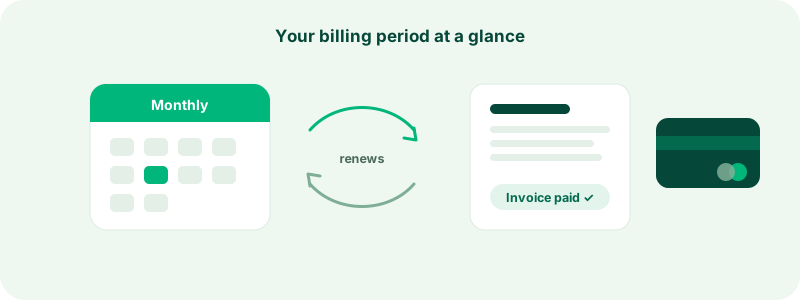
The billing page at a glance
Open your company in the business panel and choose Billing & plan. From top to bottom you will find:
- Your current plan and its key numbers: invitations used this period, team seats occupied, and your renewal or expiry date.
- Plan purchase controls — the plan cards and billing-period toggle described in choosing and upgrading your plan.
- Open invoices — invoices issued to your company that are awaiting payment, each with a pay link or transfer instructions.
- Pending payments — payments you have started but not finished, such as a bank transfer waiting for an administrator to confirm receipt.
- Invoice history — your most recent invoices, each opening into a full document view.
- Payment history — every payment attempt with its method and status: paid, awaiting payment, in review, failed, expired, canceled, or refunded.
- Billing details — the company information printed on your invoices.
Only the company owner can spend money here; other team members can view the page but not purchase.
Updating your payment method
How you update payment information depends on how you pay:
- Card subscriptions are managed through a self-service billing portal — the billing page has a button that takes you there. In the portal you can replace the card on file, view provider-side invoices, and cancel the auto-renewal. Changes take effect from the next charge.
- Crypto and manual transfer plans have no stored payment instrument to update — each renewal is a fresh payment, so you simply choose your method again when you renew. If you want renewals handled automatically without a card, you can enable auto-renewal from a prepaid TWallet balance.
Invoices: where they are and what they contain
Every settled charge — plan purchases, renewals, and TWallet top-ups alike — produces an invoice in your history. Each invoice shows:
- A sequential invoice number and issue date.
- The description of what was bought (a plan period, a wallet top-up).
- The amount, with tax shown as its own line where applicable, and the currency.
- The payment method that settled it, and its status.
- Your company's billing details as they stood when the invoice was issued.
Click any invoice to open the full document view, which includes a print button — printing to PDF from your browser gives you a file for your records. For card payments, the payment provider's own PDF invoice is also linked when available, so your accountant can use whichever document suits your bookkeeping.
Invoices awaiting payment appear in the Open invoices section with a due date and a pay link. If the platform has issued you an invoice manually — for example, for an arranged plan — this is where you pay it.
Billing details on your invoices
The billing details form on the same page controls what appears on every future invoice: legal company name, billing address, company registration number, VAT or tax ID, country, and a billing email and phone. Keep these current — especially the tax ID if your accountant reclaims VAT — because an invoice reflects the details as they stood when it was issued. Updating the form fixes future invoices, not past ones, so it pays to fill this in before your first purchase.
Tip: Set the billing email to your finance inbox even if you run the account personally. Reminder and receipt emails then land where invoices get processed, not buried in a personal inbox.
When a payment fails
Nobody loses features the moment a charge fails. The platform runs a structured, gradual dunning process:
- Reminders before the due date. Open invoices with an approaching due date trigger a heads-up notification and email, with a payment link included.
- Reminders after the due date. If an invoice goes overdue, reminders repeat on a regular cadence — each one includes the amount, the reference, and a way to pay.
- A grace window. A lapsed subscription enters a past-due grace state before anything is cut off. During grace your plan's features keep working — the platform is asking you to fix the payment, not punishing you while you do.
- Eventual pause. If an invoice stays unpaid well past its due date, the subscription is suspended and, further on, the invoice can be voided. Paying the outstanding invoice restores your plan; if an invoice was voided and you still want to settle it, contact support.
The exact reminder cadence and grace length are platform-configured, so treat the sequence above as the shape of the process rather than a precise timetable. The practical advice is simple: if you receive a payment reminder, act on it early — you keep your features throughout, and there is nothing to restore later.
Card payments that fail for technical reasons (an expired card, a declined charge) are the most common trigger. Updating the card in the billing portal and paying the open invoice resolves it immediately.
Currency
The platform bills in a single site-wide currency, which you will see on the pricing page, at checkout, and on new invoices. If the platform's currency setting ever changes, historical invoices are not rewritten — each invoice keeps the currency it was issued in, so your records stay consistent with what you actually paid.
Disputes and billing questions
If a charge looks wrong — a double charge, a payment that settled but did not activate, an invoice that does not match what you bought — do not open a dispute with your bank first. Bank chargebacks take weeks and freeze the matter; the support team can usually resolve billing issues in a fraction of the time, with full access to the payment records on both sides. Open a ticket via contact support and include the invoice number and the date of the charge.
Frequently asked questions
"I paid by bank transfer — why is my plan not active yet?" Manual transfers need an administrator to confirm receipt. Submit your transaction reference on the billing page after sending the money; confirmation typically follows quickly during business hours.
"Where is the invoice for my TWallet top-up?" Top-ups mint invoices exactly like plan payments do. They appear in the same invoice history on the billing page — see the TWallet guide for how the balance itself is tracked.
"Can I get an invoice reissued with corrected details?" Update your billing details first, then contact support with the invoice number — they can advise on the options for the document in question.
"My card was charged but the page still shows the old plan." Give it a moment and refresh — activation is triggered by the payment provider's confirmation, which almost always arrives within seconds. If it persists, support can reconcile the payment manually.
Keeping billing healthy takes three habits: accurate billing details, a payment method that will not silently expire, and acting on reminders when they arrive. Do those and the rest of the machinery takes care of itself.