Your TrustRating profile does its best work when people actually see it — and most of your potential customers are on your own website, not ours. Widgets close that gap: a small snippet you paste into your site renders your live TrustScore, star rating, and latest reviews right where buying decisions happen. When your rating changes, every embed updates automatically. There is nothing to maintain.
This guide walks through the widget templates available, how to get your embed code from the business panel, how to add it to common website platforms, the customization options, and what to check when a widget refuses to appear.
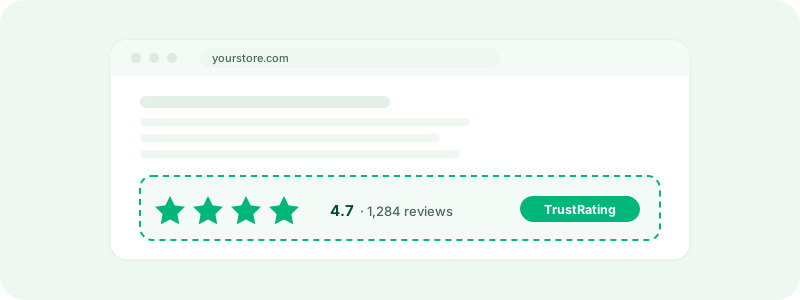
Why widgets convert
Independent, verifiable social proof is one of the most reliable conversion levers on a commerce site. A rating hosted on your own domain is just a claim; a live TrustRating widget links back to your public profile, where visitors can read every review — including the critical ones and your replies. That verifiability is precisely what makes it persuasive. Businesses typically place widgets near the moments of hesitation: product pages, checkout, pricing pages, and the site footer.
The widget templates
TrustRating ships ten widget layouts, so there's a shape for every slot on your page:
- Regular card — your score, review count, and AI consensus in a compact card. Available in vertical and horizontal layouts.
- Full-width banner — spans the container's full width; good for the top or bottom of a page.
- Square — a compact tile for sidebars and grid layouts.
- Circle score — a round score chip with stars beneath; minimal footprint.
- Minimal pill — a single line with your name, stars, and score; fits inside almost anything.
- Inline badge — a small pill sized for headers, footers, and navigation bars.
- Detailed — stars plus a per-AI-model score breakdown for maximum transparency.
- Reviews strip — your score header plus your three most recent verified reviews.
- Review carousel — an auto-scrolling strip of full review cards with a "write a review" call to action.
- AI consensus grid — each enabled AI model with its individual score.
Which templates you can embed depends on your plan — every template can be previewed in the builder, but the embed code for layouts outside your plan stays locked until you upgrade.
Getting your embed code
- Open your company in the business panel and go to Widgets. The Build view is the default.
- Pick a template from the picker. A live preview on the right shows exactly how it will render with your real, current data.
- Adjust the options — theme, layout, width, height — and watch the preview update.
- Copy the snippet from the code panel and paste it into your site's HTML where you want the widget to appear.
The snippet looks like this (yours will carry your own company identifier and embed key):
<!-- TrustRating widget -->
<div data-trustrating="your-company"
  data-trustrating-key="wgt_xxxxxxxxxxxx">
  <a href="https://trustrating.ai/company/your-company" target="_blank" rel="noopener">Your Company reviews on TrustRating</a>
</div>
<script src="https://trustrating.ai/widget.js" async></script>
Two parts matter. The div is the mount point: its data attributes tell the script which company to render and how. The script tag loads the widget code; you only need it once per page, no matter how many widgets the page contains. The embed key is unique to your company — it's what authorizes the widget to serve your data, so don't share it outside your own sites.
Pasting it into common platforms
The snippet is plain HTML, so it works anywhere you can add custom markup:
- Hand-coded sites: paste the snippet directly into your template where the widget should appear.
- E-commerce platforms (Shopify-style): edit your theme and paste the snippet into the template or section for the page you're targeting, or use the platform's custom HTML / custom liquid block if your theme offers one.
- CMS platforms (WordPress-style): use a custom HTML block in the page editor, or add the snippet to a theme template or footer widget area for site-wide placement.
- Site builders: look for an "embed code" or "custom code" element and paste the snippet into it.
Tip: Start with one widget on your highest-traffic page, confirm it renders, then roll out to other pages. The Widgets page includes an analytics view so you can see how your embeds perform.
Customization options
Everything configurable lives in the builder, and each choice is baked into the snippet as a data attribute:
- Theme — light, dark, or auto, which follows the visitor's operating-system preference.
- Layout — the regular card can render as a vertical card or a horizontal banner.
- Width and height — accept any CSS length (a fixed pixel width, a percentage, or nothing at all, in which case the widget sizes itself to its container). Most templates auto-size their height to their content.
- Saved presets — once you've dialed in a configuration, save it as a preset so the rest of your team can reuse the exact same setup.
- Allowed domains — an optional allowlist restricting which websites your embed key works on. Leave it empty to allow any site, or lock it down to your own domains so a copied snippet is useless elsewhere.
Performance and loading behavior
The widget script loads asynchronously, so it never blocks your page from rendering — your content appears first and the widget fills in when ready. Inside the mount point sits a plain link to your TrustRating profile: search engines and visitors with JavaScript disabled see that link instead of an empty box, so the embed degrades gracefully. Widgets are responsive and adapt to the container you place them in, and every embed refreshes its data automatically — no cache to clear when your score moves.
Plan requirements
Widgets are a paid feature, controlled by your subscription plan, and different plans unlock different sets of templates. When your claim on a company is approved, you receive a free widget trial that unlocks a starter set of layouts for a limited period, so you can see the effect on your site before committing. Locked templates remain visible in the builder with live previews — only the embed code is gated. See choosing a plan for what each tier includes, and note that widgets require a claimed company: unclaimed listings cannot generate embed code at all.
One rule applies regardless of plan: display TrustRating scores and reviews only through the official widgets, badges, or licensed API. Copying review text or scores into your own markup isn't permitted — the legal hub has the full brand and embed guidelines.
Troubleshooting a widget that doesn't render
The fallback link shows but the widget never loads. Check the browser console. The most common causes: the script tag was stripped by your platform's editor (some page builders sanitize scripts — use their custom-code element instead), or the snippet's div was pasted but the script tag wasn't.
The widget worked and then stopped. Widget access follows your subscription. If your trial ended or your plan changed to one without widgets, embeds stop serving until you upgrade. Embeds are also disabled while a company is under an active moderation restriction.
It renders on one site but not another. If you've configured an allowed-domains list, the embed only works on those domains — add the new site's domain on the Domains view of the Widgets page.
It looks cramped or overflows. Remove any fixed height you set and let the template auto-size, or switch to a template that fits the slot better — the minimal pill and inline badge fit almost anywhere.
The score looks outdated. Widgets pull live data, but your page or a proxy may be caching aggressively; a hard refresh usually confirms the widget itself is current.
Widgets cover your website. For email signatures, receipts, and printed material, the lighter-weight option is a badge — see using badges and marketing assets.