A claimed company profile quickly becomes a team job: someone replies to reviews, someone runs invitation campaigns, someone in leadership just wants to watch the numbers. Sharing one login for all of that is a security hole and an accountability black hole. TrustRating solves it with team seats — every teammate gets their own login, scoped to your company, with a role that matches what they actually do.
This guide covers why teams beat shared logins, exactly what each role can do, how invitations and the activation flow work for the person you invite, and the security habits that keep company access clean as people join and leave.
Why add teammates instead of sharing a login
- Security. A shared password is only as safe as its most careless holder, and it cannot be revoked for one person without resetting it for everyone. Individual seats can be removed in one click the day someone leaves.
- Accountability. With individual logins, the activity trail shows who replied to which review and who changed what. With a shared login, everything was done by "the account".
- Right-sized access. The intern drafting replies does not need access to billing. Roles let you give each person exactly what their job requires — and nothing more.
The four built-in roles
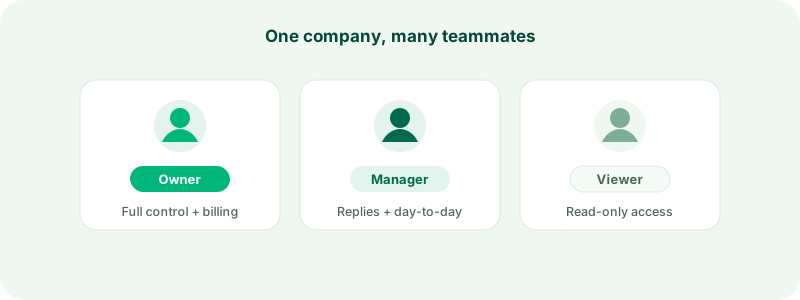
Every seat has one of four roles, forming a ladder from full control down to read-only:
- OWNER — full control, including billing and team management. The owner can change anyone's role, manage the subscription, and run domain verification. Every company has a primary owner — the person whose claim was approved — and additional owner seats can be granted, sparingly.
- MANAGER — manage reviews, templates, invitations, and integrations. Managers run the day-to-day: they can also invite and remove teammates, but they cannot change roles — promotions and demotions are reserved for owners, so access can never quietly escalate.
- RESPONDER — reply to reviews and use templates. The right seat for support agents whose whole job on the platform is answering customers well.
- VIEWER — read-only access to reviews and analytics. Perfect for executives and stakeholders who want visibility without any risk of accidental changes.
Tip: when in doubt, start lower. Upgrading a seat later is one click for the owner; walking back damage from an over-privileged seat is not.
Sending an invitation
- Open Team in your business panel.
- Enter your teammate's email address — ideally their work address on your company domain — and pick a role.
- Click Send invite. They receive an email with an acceptance link that stays valid for seven days.
The new seat appears in your team list immediately, marked pending until the invitation is accepted, then joined. If a week passes and the link expires, just invite the same address again — a fresh link goes out, and you can adjust the role at the same time.
Team seats are limited by your plan. The Team page always shows your current usage, and if you hit the ceiling, choosing a bigger plan or removing an unused seat frees the way. If a plan change ever leaves you with more filled seats than your new limit, nobody gets kicked out — existing teammates keep working, and only new invitations are blocked until you are back under the limit.
What your teammate experiences: the activation flow
The acceptance link does different things depending on who clicks it, and all of them end in the same place — a working seat:
- A brand-new teammate signs in (or signs up) and accepts. A business identity scoped to your company is created for them automatically using the invited email address. Because that fresh identity has no password yet, they also receive an activation email: clicking it opens a page where they set their own password, with the same strength meter used everywhere on the platform. The activation link is valid for seven days — and if it lapses, Forgot password on the login page issues a new one, so nobody is ever locked out for being slow. The details of how personal and business identities fit together are in creating your account.
- A teammate who already has an account with the invited email simply gets the seat attached to it. One login, another company in their business panel.
You will get a notification the moment the seat is claimed, so you always know when a pending invitation turns into a real teammate.
Changing roles and removing teammates
Both happen on the Team page, next to each member:
- Changing a role is a dropdown and a save — owner only. The change takes effect immediately; there is no need for the teammate to re-accept anything.
- Removing a teammate takes effect instantly and can be done by owners and managers. Their login continues to exist, but it no longer has any access to your company. If you remove someone by mistake, just invite them again.
- Leaving voluntarily is also possible: any teammate except an owner can leave the team themselves from the Team page. Owners cannot leave their own company — ownership has to be transferred first, so a company can never end up unmanageable by accident.
Beyond the ladder: custom roles and SSO
On Enterprise plans, two additional controls appear:
- Custom roles let you define exact permission bundles — for example a "Support agent" role that can reply to reviews and use templates but touch nothing else — and assign them to seats in place of the built-in ladder. Deleting a custom role safely returns its members to their built-in role. Owner seats never take custom roles; owners always have full access by definition.
- Single sign-on (SSO) lets you require that everyone on the team signs in with Google — passwords and email links are refused while enforcement is on — and optionally restricts new invitations to your workspace email domain.
Security best practices for shared company access
- One person, one seat. Never share credentials, even between two people "just for now". Seats are free of friction to create and instant to revoke; shared passwords are neither.
- Invite work addresses on your domain. It keeps the team list auditable at a glance and pairs naturally with the domain restriction if you later enable SSO.
- Apply least privilege. Most teams need exactly one or two owners, a manager or two, and responders for everyone who answers customers. If your team list is mostly owners, tighten it.
- Remove leavers the same day. Make revoking the TrustRating seat part of your offboarding checklist, right next to email and Slack.
- Audit quarterly. Once every few months, open the Team page and ask two questions about each seat: does this person still work here, and does their role still match their job?
- Watch for pending stragglers. An invitation that has sat unaccepted for weeks is either a wrong address or a person who does not need access. Clean either way.
Troubleshooting
The invitation email never arrived. Check spam and corporate filters, and confirm the address was typed correctly. Re-inviting the same address sends a fresh link and invalidates the old one.
"This invitation has expired." Links live for seven days. Ask an owner or manager to invite the address again.
"Over the seat limit." Your plan's seats are full. Remove an unused seat or upgrade, then resend the invitation.
A teammate's business account already manages another company. Business identities are scoped to one company each. Have them accept the invitation from their personal account instead — a separate identity for your company is created automatically and linked to their existing login.
Still stuck? Contact support and include the invited email address — we can see exactly where an invitation got stuck.