Your account settings are the control room for everything TrustRating knows about you and everything it shows the world: the name next to your reviews, the way you sign in, and the emails that land in your inbox. This guide walks through each area — what it does, where to find it, and the details that are easy to miss.
Everything below lives in your account area, which you reach from the profile menu in the top-right corner after signing in. If you do not have an account yet, start with creating your account and come back.
Your profile: what the world sees
The profile section controls your public identity on TrustRating:
- Display name. This is the name shown next to every review you write. Use your real name or a consistent pseudonym — both are fine under our guidelines, but pick one and keep it, because readers trust reviewers with a stable identity.
- Username. An optional short handle made of letters, digits, dashes, and underscores. It has to be unique across the platform, and it forms the address of your public profile page.
- Bio. A short introduction shown on your public profile. Keep it factual; it is not the place for links to your own business.
- Public profile. A toggle that decides whether other people can open your reviewer profile page at all. When it is off, your reviews still show your display name, but there is no clickable page collecting them in one place. You need both the toggle on and a username set for the public page to exist.
- Profile photo. Upload an avatar or remove it at any time. Without one, TrustRating shows your initials in a colored circle instead.
Changes to your profile take effect immediately across the site, including on reviews you wrote in the past.
Changing your password
Open the security section of your settings to change your password. You will need to enter your current password first — this is deliberate, so that someone who finds your laptop unlocked cannot quietly take over the account.
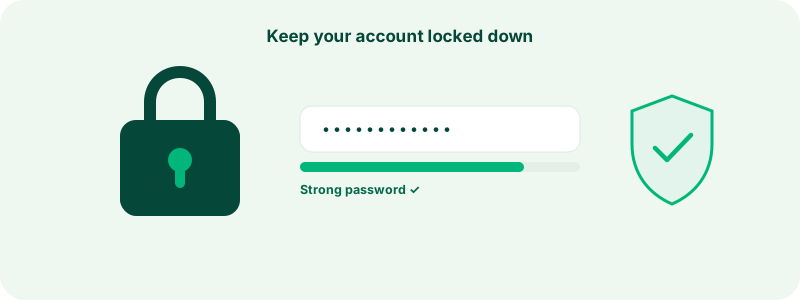
As you type the new password, a live strength meter fills in below the field, alongside a checklist of what makes a password strong: length, mixed case, numbers, and symbols. The meter is guidance, not a gate — but treat anything below "Good" as a warning. Our recommendations live in keeping your account secure.
Two things happen automatically when you change your password:
- Every other device is signed out. Only the session where you made the change stays active. If someone else had access to your account, they lose it at that moment.
- A confirmation email is sent to your address. If you ever receive one of these without having changed anything, treat it as an alarm bell and act immediately — the security guide explains what to do.
If you originally signed up through a third-party sign-in and never chose a password, the security page offers a one-time set a password form instead. Setting one gives you a fallback way in if you ever lose access to the third-party account — and you cannot disconnect your only sign-in method until a password exists, precisely so you can never lock yourself out.
Changing your email address
Your email address is the anchor of your account — it is where sign-in links, reset links, and security alerts go. Because of that, you cannot change it yourself from the settings page. If you need to move to a new address, contact support; a member of our team verifies the request and makes the change for you. This extra friction exists for one reason: an attacker who briefly controls a session should never be able to silently redirect all future recovery emails to themselves.
Notification preferences
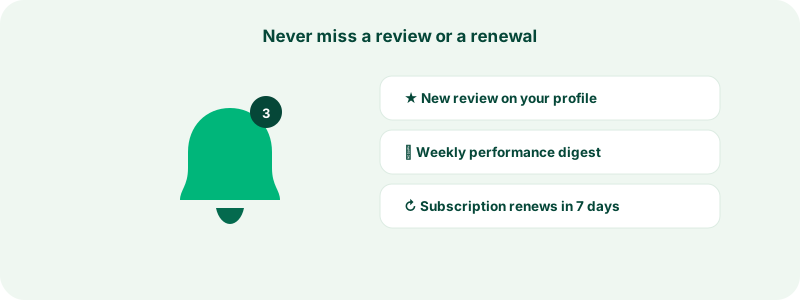
TrustRating notifies you through two channels, and you control both from the notification preferences page:
- In-app notifications appear under the bell icon in the header. You can switch them on or off per event type — for example, when a business replies to one of your reviews, when a claim you submitted is approved or rejected, when a company you follow posts news, when you reach a new reviewer level, when you are mentioned in a review, or when an important system notice goes out.
- Email delivery is controlled by a digest setting: off, a weekly summary, or instant delivery as events happen. Off means the bell still works — you just will not get email about it.
One important exception: messages about the security of the account itself — email verification, password reset links, and password-change confirmations — are always delivered regardless of your preferences. They are how we reach you when it matters most, so they cannot be switched off.
Tip: If email from TrustRating stops arriving, check your spam folder and any inbox filtering rules before assuming the setting is wrong. Our guide to troubleshooting common issues covers delivery problems in detail.
How your name appears on reviews
Every review you publish shows your display name, your avatar (or initials), and a small credibility line: how many reviews you have written and, where available, the country the review was written from. Reviewers who have earned a level badge see it displayed next to their name as well.
If your public profile is enabled, your name on a review becomes a link to your profile page, where readers can see your other reviews. This is worth knowing before you write: your review history is part of what makes your opinion credible. If you prefer to keep reviews unlinked, switch the public profile toggle off — your reviews stay published under your display name either way. To change or remove a review itself, see editing or deleting your review.
Linked business access
If you manage a company on TrustRating, you may have two identities: your personal account (for writing reviews as a consumer) and a business account (for managing the company profile). Rather than juggling two logins, you can link them from the account links page in your settings.
Linking works like this: from either account, enter the email address of the other one. The other account receives a verification email with a one-time link; opening it while signed in to that account confirms the link. Once verified, you can switch between your personal and business identity from the profile menu without signing out and back in. Each identity keeps its own settings and notification preferences.
Tip: Links must be confirmed from the receiving side, and the confirmation link expires if unused — if it lapses, just propose the link again and a fresh email goes out.
Exporting your data and deleting your account
From the privacy section of your settings you can request a full export of the data we hold on your account — profile, reviews, votes, claims, notifications, and recent sign-in history — delivered as a machine-readable file.
If you decide to leave, you can request account deletion from the same page. Deletion requests are reviewed before being carried out, and you receive a confirmation once it is done. What happens to your published reviews and what may be retained for platform-integrity purposes is governed by our privacy policy — the legal hub has the authoritative details.
Quick answers
"Can I have two accounts?" One personal account is the rule for reviewers. Business access is handled by linking, not by second accounts.
"Will renaming myself change old reviews?" Yes — reviews always show your current display name.
"I turned everything off but still got an email." Check whether it was a security message (verification, reset, password change). Those always send. Anything else, contact support and we will look at the delivery logs with you.